Configure DHCP Option 160 with a Tenant URL
You need to point DHCP Option 160 to a tenant URL so that the phones will be automatically provisioned with their .img firmware file and cfg configuration file when they're plugged in to the network for the first time (Zero Touch provisioning) and added to the Device Manager.
Either of the following two methods can be used to implement Zero Touch:
|
■
|
Configure the DHCP server to provision the phone with an IP address that is in the tenant/site range. Configure the phone to receive the IP address or subnet mask of the tenant/site. |
Device Manager supports backward compatibility so you can point DHCP Option 160 to a region URL. See the Administrator's Manual v7.2 and earlier.
|
➢
|
To point DHCP Option 160 to a tenant URL: |
|
1.
|
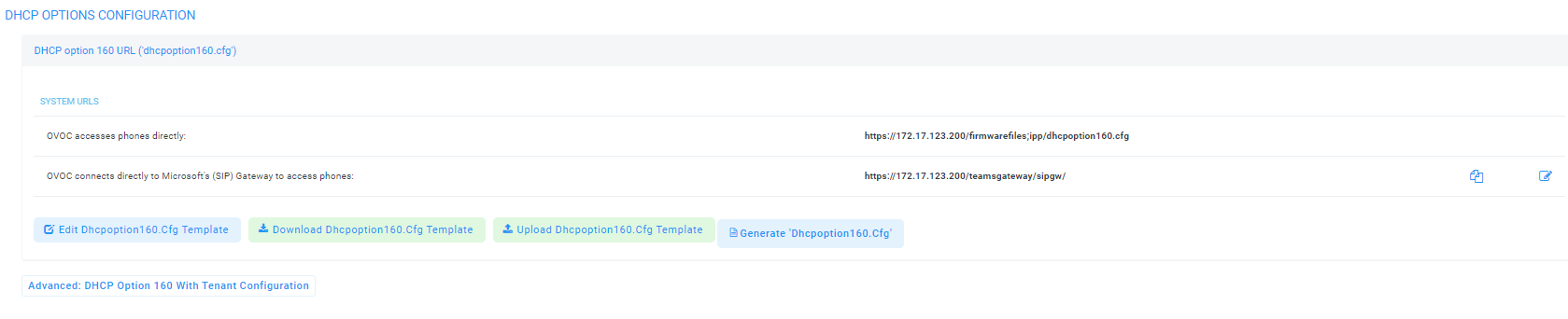
Open the DHCP Options Configuration page (Setup > Settings > DHCP Options Configuration). |
|
2.
|
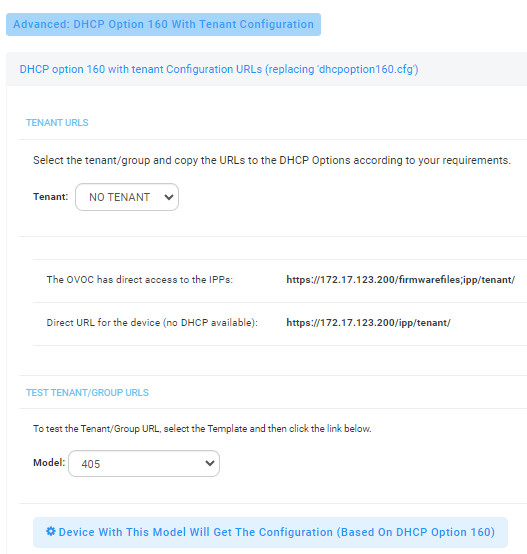
Click the Advanced: DHCP option 160 with Tenant Configuration link located lowermost in the page. |
|
3.
|
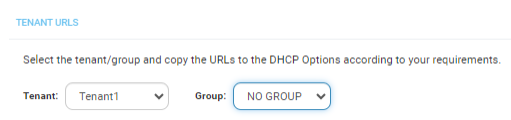
Under the Tenant URLs section, select from the 'Tenant' dropdown a tenant with which to associate a new device. |
|
4.
|
From the 'Group' dropdown list, select a group with which to associate a new device. |
You can configure the device's tenant URLs to retrieve files either directly from the OVOC server or via an SBC HTTP proxy. Using an SBC HTTP proxy server is useful for customers whose Device Manager Prois installed in the cloud, or when phones are located behind a NAT.
|
●
|
Device Manager Pro has direct access to the phones. The DHCP server will connect the phones directly to the Device Manager Proserver IP address. |
|
◆
|
Copy (Ctrl+C) the following URL and paste it into DHCP Option 160 in the enterprise's DHCP server:
HTTP://<OVOC_IP_Address>/firmwarefiles;ipp/tenant/<tenant selected in Step 1>/group/<group selected in step 1> |
|
●
|
The Device Manager Pro access the IPP's through the SBC HTTP proxy. The DHCP server directs the phones firstly to an SBC HTTP proxy server, which then redirects to the Device Manager Pro server. |
|
◆
|
If the phones communicate with an SBC HTTP proxy rather than directly with the OVOC server, copy (Ctrl+C) the following URL into DHCP Option 160 in the enterprise's DHCP server: http://SBC_PROXY_IP:SBC_PROXY_PORT/firmwarefiles;ipp/tenant/Tenant |
|
●
|
Direct URL for the IPP (No DHCP Available) – typically used for debugging purposes when no DHCP is available. |
|
●
|
Configure DHCP Option 160 to point to the OVOC provisioning server's URL if the phones are not behind a NAT. DHCP Option 66/67 can also be used. |
|
●
|
If the phones reside behind a NAT and an SBC HTTP proxy is available, configure DHCP Option 160 to point to the SBC HTTP proxy; phone-OVOC communications will then be via the SBC HTTP proxy rather than direct. |
|
6.
|
After copying the tenant URL (Ctrl+C) and pasting it into the enterprise's DHCP server's DHCP Option 160, select the phone model from the 'IPP Model' dropdown and then click the button IPP with this model will get from the DHCP; an output of the configuration file that you have configured to provision is displayed. Verify it before committing to provision multiple phones. |
When a deployment covers multiple tenants, the tenants definition can be in two main hierarchies:
For Zero Touch provisioning to function, tenant granularity must correspond with the number of DHCP servers/subnets already located within the enterprise network.
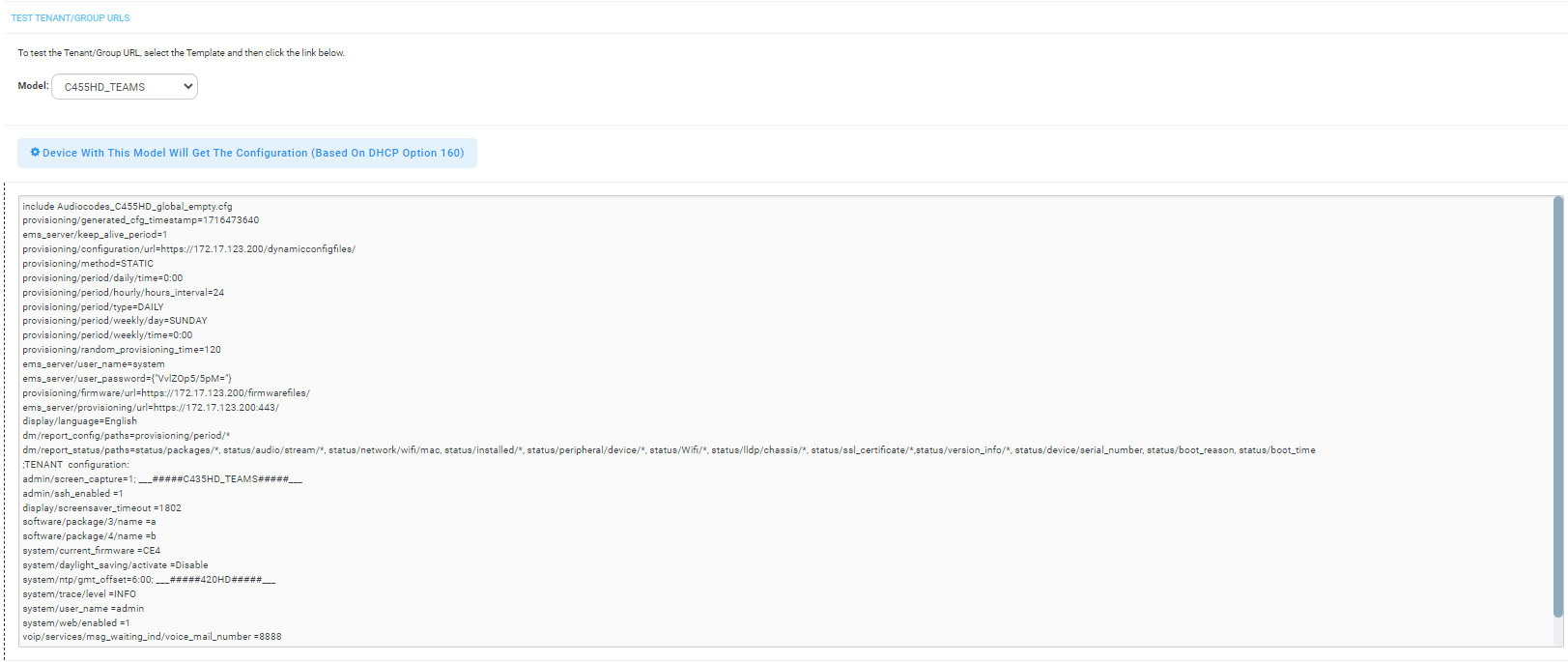
Comments in the configuration file's notation indicate a parameter's template source.
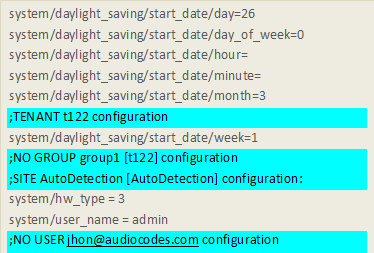
Template source can be:
Zero Touch is supported for phones with sign-in capabilities only.